Health & Beauty Labels That Elevate Your Brand
First impressions matter — especially in health and beauty. Our custom printed labels deliver the high-end look your products deserve, with durable materials that stand up to humidity, oils, and daily handling. Whether you're launching a skincare line, scaling a cosmetics brand, or refreshing existing packaging, this is the fastest, easiest way to get professional labels in hand.
Built for Health & Beauty Products
Health and beauty packaging faces unique challenges: moisture in bathrooms, oils from skin contact, and the need to communicate ingredients, usage, and brand identity all at once. Our labels are printed on waterproof, oil-resistant materials — so they stay clean, readable, and sharp long after purchase. Full-bleed, full-color printing ensures your brand colors and artwork reproduce exactly as designed.
Use Cases: What Our Labels Are Used For
| Skincare — Serums, moisturizers, toners, SPF | Body Care — Lotions, body butters, body wash |
| Hair Care — Shampoo, conditioner, hair oil | Lip Products — Lip balm, lip gloss, lip liner |
| Bath Products — Bath salts, bath bombs, soaps | Nail & Cosmetics — Nail polish, foundation, mascara |
| Wellness & Supplements — Vitamin bottles, dropper bottles, roll-ons | Fragrance — Perfume, body spray, essential oils |
Why Choose Packaging Studio for Your Beauty Labels?
| Full-Color Digital Printing Pantone-accurate color, fine-detail reproduction. Your artwork prints exactly as designed. | Waterproof & Oil-Resistant BOPP and vinyl materials won't smear, peel, or bubble in humid or oily conditions. | Flexible Sizes & Shapes Standard sizes available instantly. Custom die-cut shapes available for unique packaging. |
| Low Minimums Order as few as 500 labels — ideal for product launches, limited runs, and testing SKUs. | Fast Turnaround Standard and rush production options available. Track your order from upload to delivery. | Easy Self-Serve Ordering Upload your artwork, pick your options, add to cart. No back-and-forth required. |

Frequently Asked Questions
Q: What file format should I use for my artwork?
A: Upload a print-ready PDF, AI, or EPS file with all fonts outlined and 0.125" bleed applied. CMYK color mode preferred. See the Artwork Guide tab for full specs.
Q: Are these labels waterproof?
A: Yes. Our BOPP and vinyl materials are waterproof and oil-resistant — ideal for bathroom environments and products that come into contact with skin.
Q: Can I order labels in multiple designs?
A: Yes. Each SKU/design is ordered separately. Use the same material and finish across designs for a consistent look.
| Type | Size | Templates |
|---|---|---|
| Landscape Label | W7 x H5 (16 oz Bottle) | Download |
| Landscape Label | W7 x H3 (8oz Bottle) | Download |
| Landscape Label | W7.125 x H1.5 (4oz Jar) | Download |
| Landscape Label | W7 x H1 (2oz Jar) | Download |
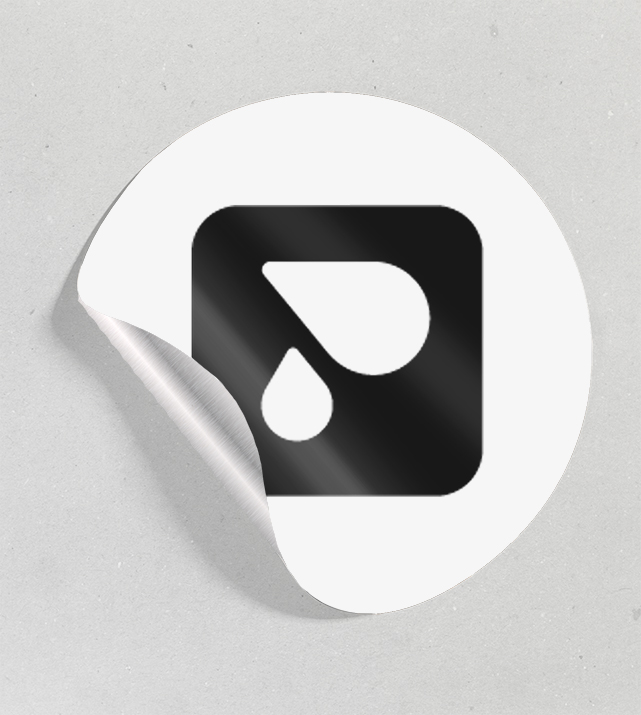
White BOPP Film
- Opacity: Offering a solid white background for vibrant label printing and design.
- Printability: Allows for crisp graphics and vibrant colors, perfect for high-quality label applications.
- Durability: Resistant to water, moisture, tears, and scratches, ensuring labels remain intact in challenging environments.
- Versatility: Ideal for a wide range of label applications including product labels, packaging labels, and more.

Metallic BOPP Film
- Stunning Metallic Appearance: Reflective and lustrous, resembling metal foils like gold, silver or holographic effects.
- Versatility: Ideal for cosmetics, personal care, specialty food and beverages, and promotional materials.
- Water and Moisture Resistance: Provides reliable protection against water and moisture, ensuring label integrity.
- Enhanced Durability: The metallic coating reinforces durability, guarding against scuffing and scratching.
SPOT White layer on a metallic film
Incorporating a white ink layer when working with metallic or clear substrates ensures the final result aligns with your vision. It enhances color accuracy and vibrancy, improves visibility and legibility, and enables the application of special effects.
Opacity
Metallic and clear substrates are transparent or semi-transparent, allowing light to pass through. Without a white ink layer underneath, colors can appear dull or translucent as the substrate shows through. Adding a white ink layer creates opacity, ensuring the colors remain vibrant and true to your vision
Color Accuracy
Certain colors, especially lighter shades, may not appear accurately on metallic or clear substrates without a white ink layer. The white layer acts as a base, allowing the colors to appear as intended by blocking the substrate's color from affecting the colors. .
Contrast
White ink enhances contrast, increasing visibility and legibility, particularly on metallic substrates where the reflective surface can cause glare or reduce clarity.
Special Effects
White ink can be used creatively to create unique effects on metallic or clear substrates, such as creating highlights, adding texture, or simulating spot varnishes. This can add an extra layer of sophistication to your packaging.
Setting up a SPOT white layer in Adobe Illustrator
To set up a SPOT White layer follow these steps (Full instructions are included in the template):
- Open your document in Adobe Illustrator.
- Go to the "Swatches" panel (Window > Swatches) and click on the Swatch Options menu icon (located at the top right corner of the panel).
- Choose "New Swatch" from the dropdown menu.
- In the New Swatch dialog box, select "Spot" as the Color Type.
- Name your spot white 'SPOT WHITE' or a similar identifier
- Tip - Although your spot white will print using white ink in production, it is helpful in the design process to assign a tint of a color, say 20% Cyan. This way you can see the elements you have applied SPOT WHITE to.
- Click "OK" to create the SPOT White swatch.
- It is best practice to create a SPOT WHITE layer in your file. Place any white elements on this layer in exactly the right position. You can show/hide this layer as required.
- Apply the SPOT White swatch to selected objects or areas by clicking on it in the Swatches panel.
Turning your fonts to 'Outline' in Adobe Illustrator
To avoid errors in processing, ensure all your fonts have been turned to outline before you upload your PDF to the platform.
To turn fonts into outlines, follow these steps:
- Select the text or texts you want to convert to outlines.
- Go to the "Type" menu at the top.
- Choose "Create Outlines" from the dropdown menu. Alternatively, you can use the shortcut Ctrl + Shift + O (Windows) or Cmd + Shift + O (Mac).
- After selecting "Create Outlines," the text will now be converted into vector shapes, effectively turning the fonts into outlines.
Keep in mind that once you convert text to outlines, you can no longer edit it as text. Therefore, it's a good practice to make a copy of the text before converting it to outlines if you might need to edit it later.
Make sure your artwork has bleed applied
Including bleed in your artwork is crucial, especially for projects like lay-flat and stand-up pouches. Bleed refers to the extra space around the edge of the final trimmed document where the artwork extends. This ensures that when the document is cut, the artwork reaches the edge without leaving blank spaces. Proper bleeds and margins are necessary for a polished finish, with a recommended bleed area of 3mm (0.125 inches).
To set up bleed:
Open your document in Adobe Illustrator.
Go to "File" > "Document Setup."
In the Document Setup dialog box, enter your desired bleed value (e.g., 3mm) in the "Bleed" input boxes.
Click "OK" to apply the bleed settings to your document.
When creating your artwork, extend any background colors, images, or elements that touch the edge of the document beyond the bleed area. This ensures that there are no white borders when the document is trimmed.